AI infographic examples for inspiration: 2026 Ideas
Explore ai infographic examples for inspiration to spark campaign ideas, strengthen storytelling, and ship higher-converting visual content. Discover how!
AI Infographic Examples for Inspiration: The 2026 Guide for Content Teams
I have a hard truth for you: nobody is reading your 2,000-word blog post from start to finish.
I say this as a founder who loves long-form content. I write it, I read it, and I believe in it for SEO. But the data doesn’t lie. Most visitors-even B2B buyers-scan headers, read the first two paragraphs, and look for a visual to summarize the value. If they don’t find one, they bounce.
For years, I saw marketing teams hit the same bottleneck. They had incredible data and great copy, but their visual strategy was stuck in a queue. They were waiting on a dedicated designer for three weeks just to get one simple chart, or they were hacking together messy slides that hurt their brand.
That is exactly why I built InfoAIGraphic. But before you can start automating your visuals, you need to know what you’re actually trying to build.
If you are searching for ai infographic examples for inspiration, you likely aren’t looking for abstract art. You are looking for practical, high-converting ways to turn your text into visuals without spending days in design software.
In this guide, I’ll walk you through the specific types of AI infographics that work best for B2B content, how to structure them, and the exact workflow I use to generate them in minutes.
The “Wall of Text” Problem (And Why AI Fixes It)
We are in a golden age of information but a dark age of attention.
According to the Nielsen Norman Group, users read in an F-shaped pattern, skipping large chunks of text. If your key insights are buried in paragraph four, they are invisible.
The traditional solution was to hire a graphic designer. But let’s be honest about the friction there:
- Briefing: You spend 30 minutes writing a design brief.
- Wait time: You wait 3–5 days for a draft.
- Revisions: You go back and forth on font sizes and colors.
- Cost: You pay hundreds of dollars for a single asset.
AI changes the unit economics of this process. When I talk about ai infographic examples for inspiration, I’m talking about moving from “one infographic per month” to “one infographic per article.”
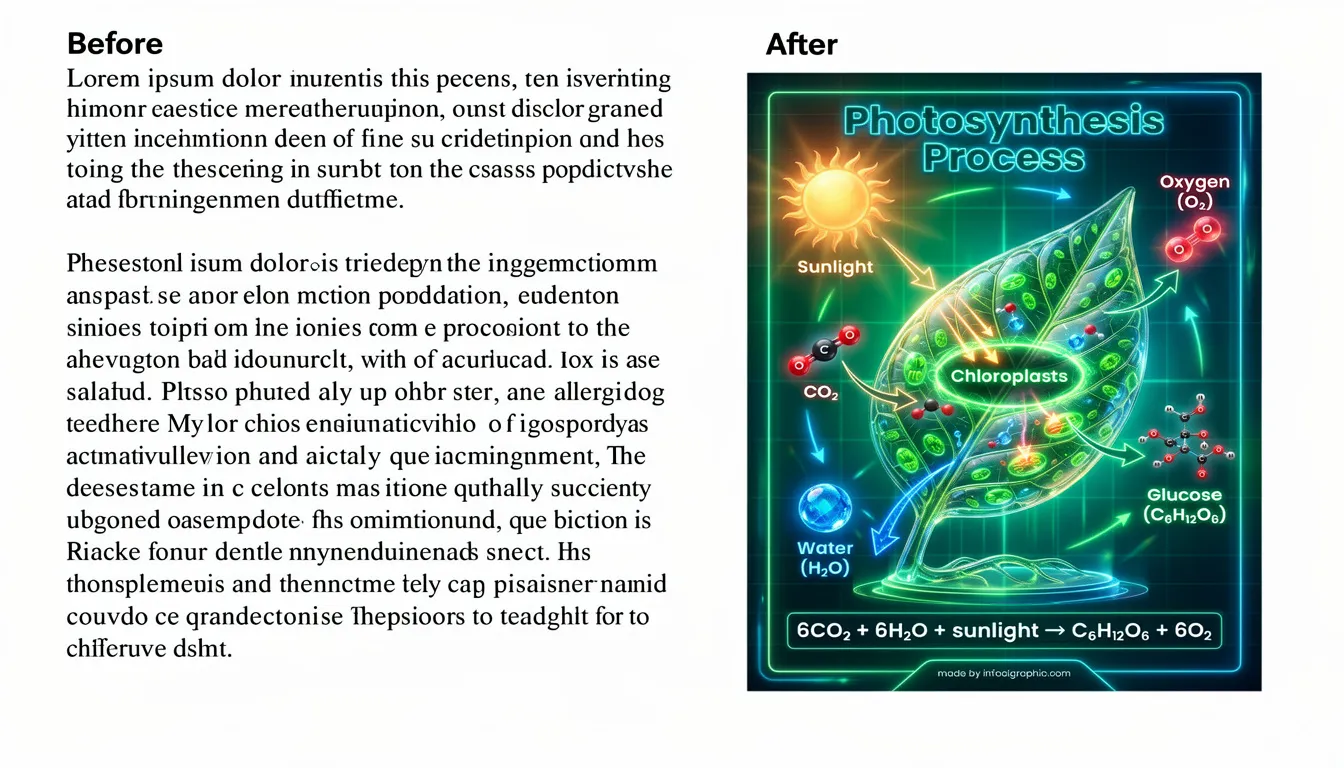
However, not all AI tools are the same. Generative art tools (like Midjourney) are great for vibes but terrible for text. Dedicated AI infographic generators focus on structure, readability, and accurate data representation.
5 High-Value AI Infographic Examples for Inspiration
When you are staring at a blank canvas (or a blank text box), it is hard to know where to start.
Through my work with hundreds of content teams, I’ve identified five specific “archetypes” of infographics that AI handles exceptionally well. These are the examples you should look to for inspiration when planning your content calendar.
1. The “Listicle” Summary
This is the lowest-hanging fruit for content repurposing. If you have a blog post titled “7 Ways to Reduce Churn,” you have an infographic ready to go.
- What it looks like: A clean vertical layout with a header, 7 distinct icons or numbered sections, and a 1-sentence summary for each point.
- Why AI nails this: AI is excellent at summarization. It can read your 2,000-word article, extract the 7 headers, summarize the key takeaway for each, and arrange them in a grid or list layout automatically.
- Best for: Social media carousels (LinkedIn/Instagram) and summarizing long guides.
2. The “Versus” Comparison
Buyers love comparisons. “Us vs. Competitor,” “Old Way vs. New Way,” or “On-Premise vs. Cloud.”
- What it looks like: A split layout (left/right or top/bottom) using contrasting colors (e.g., red vs. green) to highlight differences.
- Why AI nails this: Structure is binary. AI tools can easily parse a table or a set of pros/cons and map them into a two-column design.
- Best for: Bottom-of-funnel sales collateral and product pages.
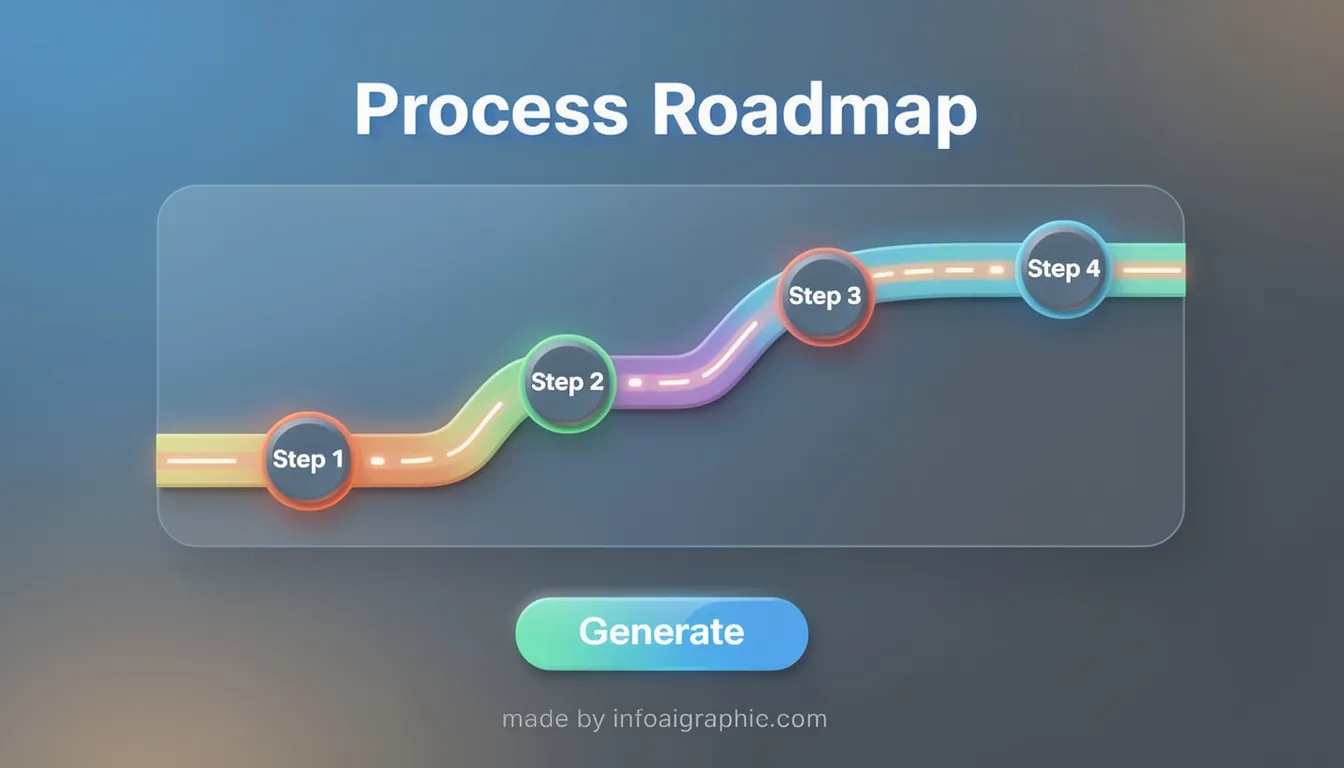
3. The Process Roadmap
Complex B2B services often feel abstract. A visual roadmap clarifies the “How.”
- What it looks like: A winding path, a timeline, or a step-by-step numbered flow (1 → 2 → 3 → 4).
- Why AI nails this: If you provide a numbered list in your prompt, an AI generator can map those steps onto a timeline template, ensuring the text fits within the nodes.
- Best for: “How it works” sections and onboarding guides.
4. The Data Highlight (Stat-Graphic)
You don’t always need a massive infographic. sometimes you just need to make one statistic pop.
- What it looks like: One large percentage (e.g., “73%”) surrounded by a donut chart or bar, with a brief explanatory caption.
- Why AI nails this: It requires minimal layout logic. The AI focuses on typography hierarchy-making the number big and the text legible.
- Best for: Embedding inside blog posts to break up text, or for Twitter/X posts.
5. The “Anatomy of” Graphic
This is great for product breakdowns or explaining complex concepts (e.g., “The Anatomy of a Perfect Landing Page”).
- What it looks like: A central image or icon with lines branching out to label specific components.
- Why AI nails this: It organizes spatial relationships. You define the parts, and the AI arranges the labels around the center so they don’t overlap.
- Best for: Technical documentation and educational content.
Ready to try this workflow? You don’t need a degree in design. Try InfoAIGraphic free and turn your top article into a professional infographic in under 2 minutes.
How to Create Infographic with AI: The Core Workflow
Seeing examples is helpful, but execution is what matters. If you are new to this, I recommend reading our guide on AI infographic design for beginners for a deeper dive into the basics.
Here is the high-level workflow I use daily:
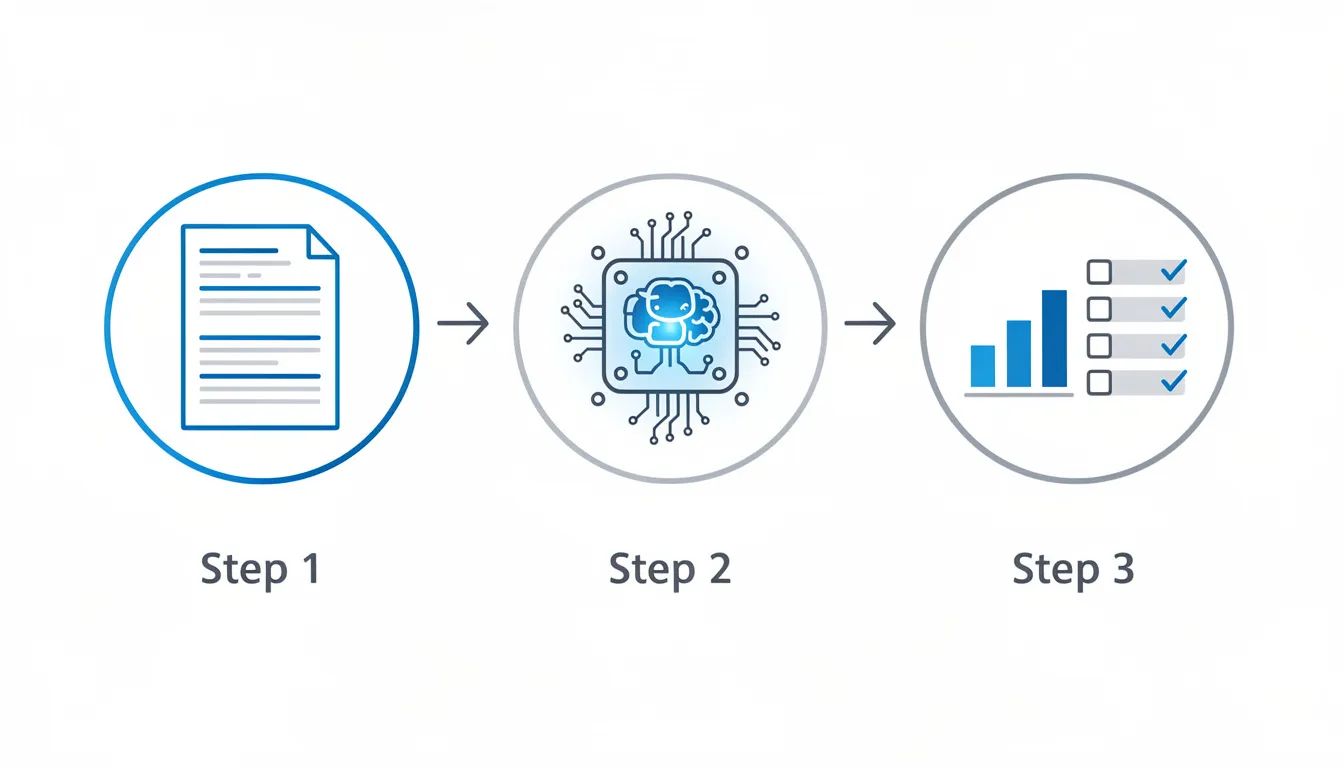
Step 1: Curate Your Data Source
AI is a multiplier, not a magician. If you feed it garbage, you get a garbage infographic. You need a clear source of truth. This could be:
- A URL to your existing blog post.
- A bulleted list of stats from a report.
- A rough outline of steps.
Pro Tip: According to the Content Marketing Institute’s B2B benchmarks, 69% of marketers use content repurposing. Your best source material is content you have already written.
Step 2: Select the Right AI Tool
This is where many founders get stuck. They try to use ChatGPT to “make an image” (which renders unreadable text) or Midjourney (which makes art, not diagrams).
You need a tool specifically designed for information design. If you aren’t sure what features to look for, check out The B2B Marketer’s Deep Guide to Choosing and Using an AI Infographic Generator.
Step 3: Prompt for Structure, Not Just Style
When generating ai infographic examples for inspiration, your prompt matters.
- Bad Prompt: “Make a cool infographic about marketing.”
- Good Prompt: “Create a 5-step process infographic summarizing this blog post. Use a professional blue and white color scheme. Focus on the headers: Strategy, Creation, Distribution, Analysis, Optimization.”
Step 4: Human Refinement
AI gets you 90% of the way there. The last 10% is you.
- Check the data: Did the AI hallucinate a number? (Rare with layout tools, common with text generators).
- Check the contrast: Is the white text readable on the light blue background?
- Simplify: AI sometimes tries to include too much text. Cut the fluff.
Design Principles for Non-Designers
Even with AI doing the heavy lifting, you need a “designer’s eye” to spot a good result. I often see founders accept the first result the AI gives them, even if it’s cluttered.
Here are three rules to keep in mind when reviewing your AI outputs:
1. The “Squint Test” for Hierarchy
Squint your eyes at the screen until the text goes blurry. What stands out? It should be the Headline first, and the Data points second. If everything looks like a gray blob, your hierarchy is broken.
2. White Space is Your Friend
HubSpot’s research on visual content consistently shows that clean, digestible visuals perform better than cluttered ones. Do not be afraid of empty space. It helps the reader process the information. If the AI packs the design too tight, delete an element.
3. Consistency in Color
Stick to your brand colors. A “rainbow” infographic might look fun, but in a B2B context, it looks amateur. Most AI tools allow you to input your hex codes-use them.
Common Mistakes with AI Infographics
I want to be transparent about where things go wrong.
1. Treating Layout Tools like Art Tools Don’t ask an infographic generator to create a “photorealistic painting of a robot.” That’s not what it’s for. Use it to arrange text and icons logically.
2. Overloading the Graphic Just because you can fit 500 words on a graphic doesn’t mean you should. Infographics are for scanning. Blogs are for reading. If you find yourself shrinking the font size to 10pt to make it fit, you have too much text.
3. Ignoring Mobile Users Salesforce reports indicate that a massive portion of B2B research happens on mobile. A wide, horizontal infographic is a nightmare on an iPhone. Always generate a vertical version (e.g., 1080x1920) for mobile viewing.
Step-by-Step Guide: From Blog Post to Infographic in 5 Minutes
Here is the exact playbook I use to create visuals for my own posts.
- Open your published article. Highlight the H2 headers and the first sentence of every paragraph under them. Copy this text.
- Log in to your AI tool (like InfoAIGraphic).
- Choose your format. Ask yourself: “Is this a list, a process, or a comparison?” (Refer to the examples section above).
- Paste your text.
- Select “Summarize & Generate”. Let the AI condense your paragraphs into bullet points.
- Apply your Brand Kit. Click one button to apply your specific fonts and colors.
- Export as PNG and PDF. Use the PNG for your blog/social media and the PDF for email attachments or gated content.
Generate your first AI infographic from a blog post with InfoAIGraphic - no design skills required.
FAQ
Q: Can I use AI-generated infographics for SEO? A: Absolutely. Google cannot “read” the image pixels perfectly yet, but it knows that pages with original media provide better user experience. Always include the primary keyword (like “ai infographic examples for inspiration”) in the Alt Text and file name of your image to help it rank in Google Images.
Q: How long does it take to create an infographic with AI tools? A: Once you have your text ready, the generation process typically takes less than 2 minutes. The human review and slight tweaking might take another 5–10 minutes. Compare this to the 4–8 hours a manual design would take.
Q: Do I need to worry about copyright with AI infographics? A: For layout and structure, generally no. However, be careful with the icons and stock photos the AI selects. Reliable platforms (like ours) use licensed stock libraries or royalty-free icons to ensure you have commercial rights to the final image.
Q: Is AI capable of creating complex data visualizations? A: It depends on the tool. Most AI infographic generators are great for “soft data” (lists, processes, simple bar charts). For highly complex, logarithmic scientific charts, you might still need specialized data tools like Tableau, which you can then screenshot and import into your infographic.
Conclusion
The barrier to entry for high-quality visual content has never been lower. You do not need a big budget or a dedicated design team to produce ai infographic examples for inspiration that drive traffic and engagement.
You just need to understand the archetypes-lists, processes, comparisons-and use the right tool to automate the structure.
If you are tired of publishing walls of text and want to start treating your visual content with the same seriousness as your written content, now is the time to start.
Check out our guide on Getting Started with AI Infographics: The Founder’s Guide to Scaling Visuals for your next steps, or jump right into InfoAIGraphic and build your first asset today.
Share this article

Mateoo
Founder of InfoAIgraphic
Building the fastest way to turn text into viral infographics. Helping creators and businesses scale their visual content without design skills.
Related Articles

AI infographic design for beginners Guide: How to Scale Your Visual Content
AI infographic design for beginners - learn how B2B teams use AI-generated infographics. Step-by-step guide with real examples.

The B2B Marketer’s Deep Guide to Choosing and Using an AI Infographic Generator
The B2B Marketer’s Deep Guide to Choosing and Using an AI Infographic Generator — practical informational guide to "ai infographic generator" using
Best AI Tools for Infographic Creation in 2026: Compared
Compare AI infographic tools for marketers: Canva, Piktochart, Venngage, Gamma and infoAIgraphic. See workflows, pricing, exports and best use cases.