Best AI Tools for Infographic Creation in 2026: Compared
Compare AI infographic tools for marketers: Canva, Piktochart, Venngage, Gamma and infoAIgraphic. See workflows, pricing, exports and best use cases.
Best AI Tools for Infographic Creation in 2026: Compared
Try the workflow on your own content
Paste a blog post, report, PDF, or idea and generate a free infographic preview with the AI infographic generator.
It’s 2 PM on a Tuesday. You’ve just finished drafting a 2,000-word blog post that’s packed with data, insights, and strategy. It’s a masterpiece.
But as you stare at the “Publish” button, a familiar dread sets in. You know that if you post this wall of text without visuals, your bounce rate is going to skyrocket. You need a chart, a timeline, or a summary infographic to stop the scroll on LinkedIn.
You open your design tool. You stare at a blank white square. You drag in a rectangle, change the color, delete it, and sigh.
I’ve been there. For years, my choice was binary: spend three hours wrestling with design software I wasn’t qualified to use, or pay a freelancer $300 and wait four days. Neither option works when you need to ship content now.
This friction is exactly why AI tools for infographic creation have become the most important addition to the modern marketer’s stack. We are moving from an era of “pixel pushing” to an era of “prompting,” where the barrier to professional visual communication is no longer skill-it’s just imagination.
In this guide, I’m going to walk you through how to use these tools to turn your text into visuals that actually convert, without the hype and with a lot of practical examples.
The Visual Content Gap (And Why It’s Costing You)
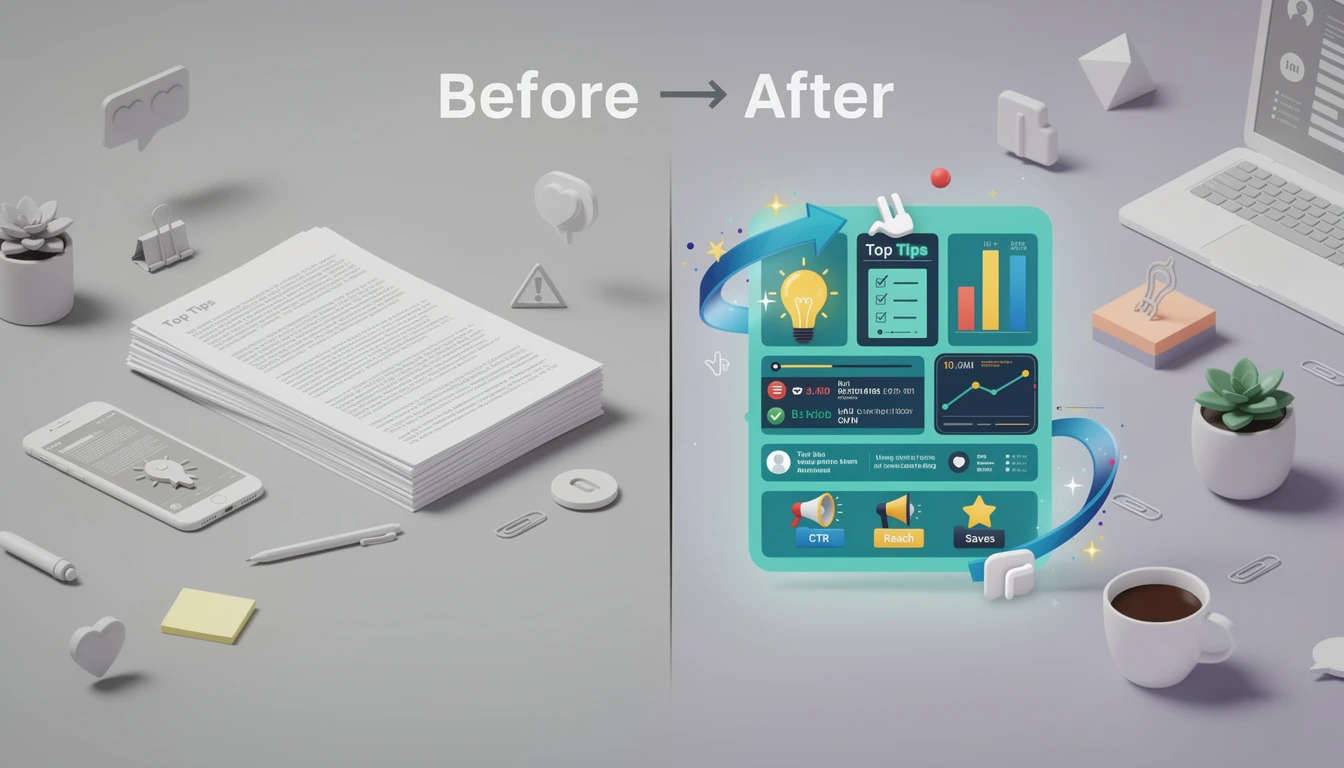
Before we jump into the tools, let’s be honest about why this matters. It’s not just about making things “look pretty.” It’s about biology.
According to the Nielsen Norman Group, users typically read only about 20% of the text on a web page. They don’t read; they scan. If your content doesn’t have “visual anchors”-graphics that summarize key points-readers will likely bounce before they ever get to your CTA.
Furthermore, Venngage reports that original graphics like infographics are the top-performing visual content type, yet many teams avoid them because they are “too hard” to make.
This creates a Visual Content Gap:
- You have the data: Your blog posts and white papers are full of value.
- You have the audience: People are landing on your page.
- You lack the bridge: You aren’t translating that data into the visual language your audience’s brain prefers.
AI fixes this bridge. It allows you to take the text you’ve already written and transmute it into a visual format instantly.
What Are AI Tools for Infographic Creation?
When people say “AI design,” they usually mean one of three things. It is critical to understand the difference so you don’t use the wrong tool for the job.
1. Generative Art Tools (Midjourney, DALL-E)
These are text-to-image generators. They are incredible for creating a header image of “a cybernetic robot shaking hands with a human,” but they are terrible for infographics. If you ask Midjourney to “make a bar chart showing Q3 growth,” it will give you a beautiful, artistic image with gibberish text and hallucinations.
2. AI-Assisted Design Platforms (Canva, Visme)
These are traditional design tools that have added AI features. You can say “generate a presentation about marketing,” and they will give you a template. They are great, but they still require you to be the designer. You still have to drag, drop, align, and tweak.
3. Content-to-Infographic Generators (InfoAIGraphic)
This is the new category we focused on when building InfoAIGraphic. These tools take structured text (like a blog post summary or a list of stats) and intelligently map it to a layout. The AI understands that “Step 1” goes here and “Step 2” goes there. It’s not generating art; it’s generating information architecture.
Benefits of AI Tools for Infographic Creation for Content Teams
If you are running a content team, the ROI on this specific category of AI is massive.
- Speed: In my own tests, creating a standard “5 Tips” infographic manually takes about 90 minutes. With AI, it takes roughly 2 minutes. HubSpot’s 2024 State of Marketing report found that marketers save an average of 3 hours per piece of content when using AI tools.
- Consistency: AI doesn’t get tired. It doesn’t forget your brand colors. It ensures every single blog post has a matching infographic without you needing to police a freelancer.
- SEO & Repurposing: Google Images is the second largest search engine in the world. By generating an infographic for every article, you instantly give your content a second chance to rank. (See our guide on getting started with ai infographics for more on this strategy).
How to Create Infographic with AI: A Step-by-Step Workflow
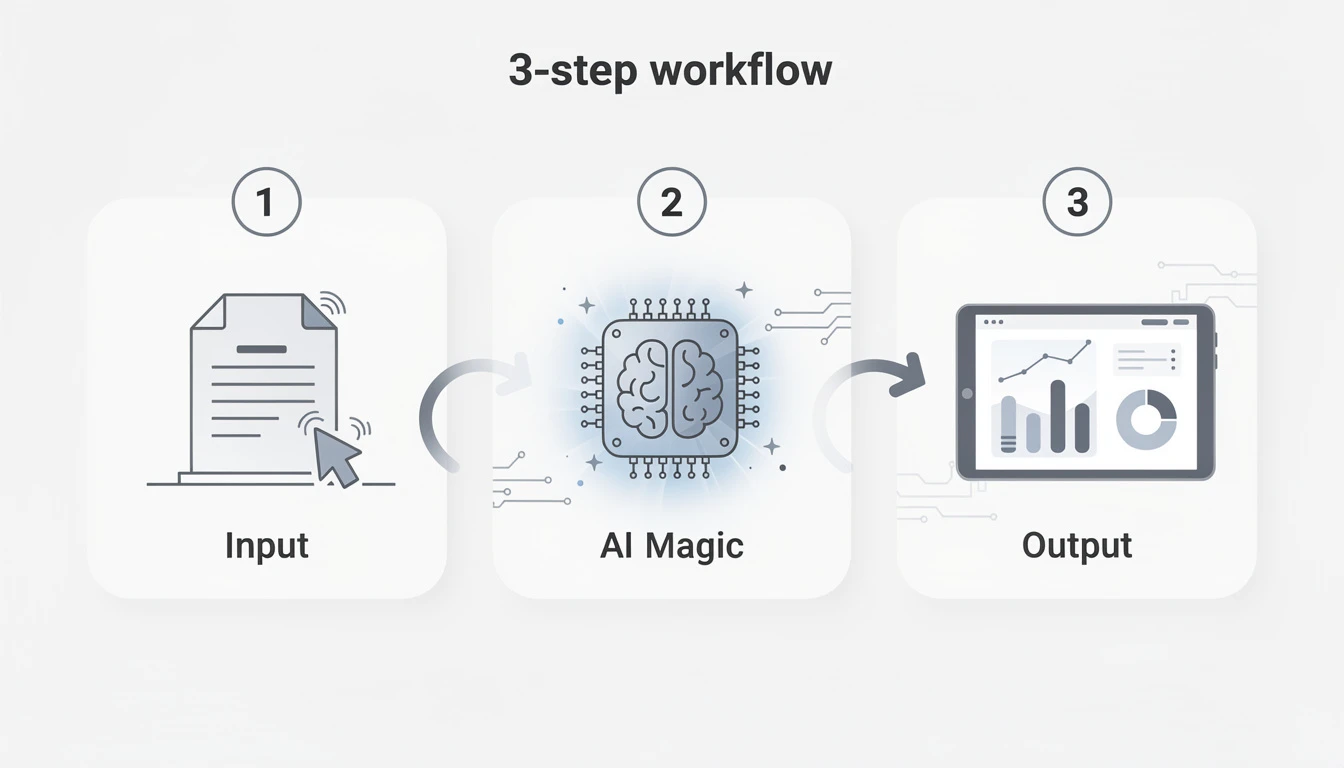
Let’s get tactical. Here is the exact workflow I use to turn a blog post into an infographic using AI. You can do this right now with your latest article.
Step 1: Isolate Your “Data Nuggets”
AI is smart, but garbage in equals garbage out. You cannot simply paste a 3,000-word transcript and expect a perfect graphic. You need to identify the structured data.
Look for:
- Lists: “5 reasons why…”
- Processes: “How to X in 3 steps…”
- Comparisons: “Product A vs. Product B”
- Stats: “73% of marketers…”
Step 2: Select Your Structure
Before you prompt the AI, decide on the logic of the visual.
- Is it a Timeline? (First this, then that)
- Is it a Listicle? (Tip 1, Tip 2, Tip 3)
- Is it a Comparison? (This side vs. That side)
Pro Tip: If you are using InfoAIGraphic, the tool will often suggest the best layout based on the text you provide, but having a vision helps.
Step 3: The Prompt (The “Secret Sauce”)
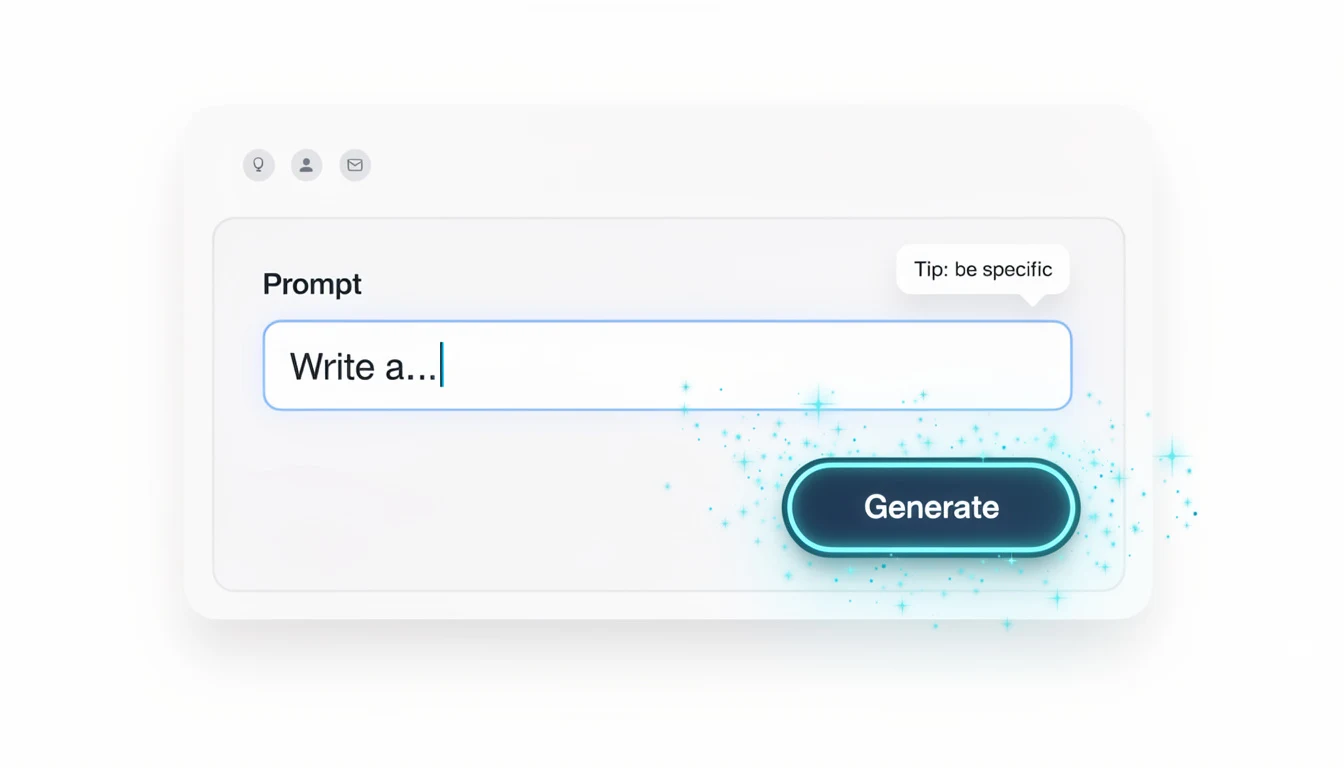
This is where most people fail. They write generic prompts like “Make an infographic about marketing.”
Instead, be specific about the content hierarchy.
- Bad Prompt: “Create a graphic about SEO.”
- Good Prompt: “Create a step-by-step infographic titled ‘The 3 Pillars of SEO’. Step 1 is ‘Technical SEO’ with the description ‘Crawlability and speed.’ Step 2 is ‘Content’ with the description ‘Quality and relevance.’ Step 3 is ‘Authority’ with the description ‘Backlinks and trust.’”
Step 4: Review and Refine
AI gets you 90% of the way there. The last 10% is the “human trust layer.” Check the text. Did the AI hallucinate a statistic? (It happens). Is the brand color slightly off?
Ready to try this workflow? Try InfoAIGraphic free and turn your top article into an infographic in under 2 minutes.
Common Mistakes When Using AI for Design
I talk to founders every week who are excited about AI but end up with messy results. Here are the traps to avoid.
1. Overcrowding the Canvas
Just because the AI can fit 500 words into a graphic doesn’t mean it should. Backlinko’s analysis shows that simple, focused visuals tend to earn more backlinks than cluttered ones. If you have too much text, split it into two different infographics.
2. Ignoring Brand Guidelines
AI loves to get creative with neon colors. If you are a B2B law firm, you don’t want a neon pink timeline. Always ensure your AI tool allows you to lock in your hex codes and fonts before generation.
3. Using “Generative Art” for Data
I mentioned this earlier, but it bears repeating. Do not use Midjourney for charts. It will invent numbers. Use a tool designed for layout and text, not just “vibes.”
Best Practices for B2B Teams
If you are scaling this across a team, you need a system.
- Template Libraries: Don’t start from scratch every time. Once you generate a layout you like (e.g., a “Customer Testimonial” graphic), save it as a template.
- The “One-Header” Rule: Every blog post H2 (header) is a potential infographic. If you have a post with 5 H2s, you have the potential for 5 social media graphics.
- Cite Your Sources: If your infographic includes data, always include a footer with the source. Content Marketing Institute emphasizes that trust is the primary currency in B2B content; unverified stats kill trust.
For more inspiration on what these outputs look like, check out our collection of AI infographic examples for inspiration.
Troubleshooting: Why Does My AI Infographic Look Weird?
Sometimes the output isn’t perfect. Here is a quick troubleshooting guide, similar to how I debug my own content.
Symptom: The text is cut off or too small.
- Fix: You are trying to cram a paragraph into a “bullet point” slot. Summarize your input text. Cut the fluff.
Symptom: The icons don’t match the topic.
- Fix: AI association can be literal. If you write “Launch,” it might show a rocket ship when you meant a “product launch.” Manually swap the icon for something more corporate if needed.
Symptom: The layout feels chaotic.
- Fix: You likely mixed data types (e.g., a list mixed with a chart). Stick to one structure per graphic.
Generate your first AI infographic from a blog post with InfoAIGraphic - no design skills required.
Step-by-Step Guide: From Blog Post to LinkedIn Carousel
This is the “killer app” for AI infographics: The Carousel. LinkedIn algorithms love PDFs that people click through.
- Open your top-performing blog post.
- Copy the sub-headers (H2s). These will be your slides.
- Paste them into your AI tool.
- Select “Carousel” or “Multi-page” format.
- Export as PDF.
- Upload to LinkedIn.
This process used to take me all afternoon. Now it’s part of my morning coffee routine. For a deeper dive on this specific tactic, read our guide on how to create infographic with ai.
FAQ
Q: How long does it take to create an infographic with ai tools for infographic creation? A: Once you have your text ready, the actual generation takes seconds. Including review and minor edits, you should budget about 2–5 minutes per graphic, compared to hours for manual design.
Q: Can AI-generated infographics rank in Google Images?
A: Yes, absolutely. Google crawls the file name, alt text, and surrounding context. AI-generated graphics are technically identical to hand-made ones in the eyes of search engines. Just make sure to export them with descriptive filenames (e.g., ai-marketing-statistics-2026.webp).
Q: Is the copyright mine if I use AI? A: In most cases, yes, especially if you are using tools that provide standard commercial licenses (like InfoAIGraphic, Canva, etc.). However, pure “generative art” (like raw Midjourney outputs) has a complex legal status regarding copyright. For layout-based tools where you provide the copy, you generally own the final asset.
Q: Will AI replace my graphic designer? A: For day-to-day social graphics and blog summaries? Probably. For your core brand identity, complex annual reports, or homepage hero illustrations? No. AI removes the “grunt work,” allowing designers to focus on high-value creative projects.
Q: Is ai tools for infographic creation suitable for SEO and content repurposing? A: It is arguably the best use case. Repurposing text into visuals increases “Time on Page” and earns backlinks, which are two of the strongest ranking signals for SEO.
Conclusion
The barrier to high-quality visual content has crumbled. You no longer need a degree in color theory to communicate visually; you just need to know what you want to say.
AI tools for infographic creation aren’t about cheating the system. They are about respecting your reader’s time. Your audience wants to learn from you, but they are busy, distracted, and scanning. By using these tools, you are meeting them where they are.
Start small. Take your next blog post, find the most interesting list or statistic, and turn it into a graphic. See what happens to your engagement.
If you want the fastest way to turn your structured text into professional visuals, I invite you to try InfoAIGraphic. We built it for founders and marketers just like you.
Share this article

Mateoo
Founder of InfoAIgraphic
Building the fastest way to turn text into viral infographics. Helping creators and businesses scale their visual content without design skills.
Related Articles
AI infographic examples for inspiration: 2026 Ideas
Explore ai infographic examples for inspiration to spark campaign ideas, strengthen storytelling, and ship higher-converting visual content. Discover how!

Getting Started with AI Infographics: The Founder's Guide to Scaling Visuals
Getting started with ai infographics - learn how B2B teams use AI-generated infographics. Step-by-step guide with real examples.

AI infographic design for beginners Guide: How to Scale Your Visual Content
AI infographic design for beginners - learn how B2B teams use AI-generated infographics. Step-by-step guide with real examples.