No subscription. Pay only for HD exports.

YouTube to Infographic AI Generator

Repurpose YouTube videos, webinars, tutorials, and transcripts into professional infographic summaries with key points, steps, and visual takeaways.

Secure Stripe checkout. Credits never expire. Commercial HD exports available.

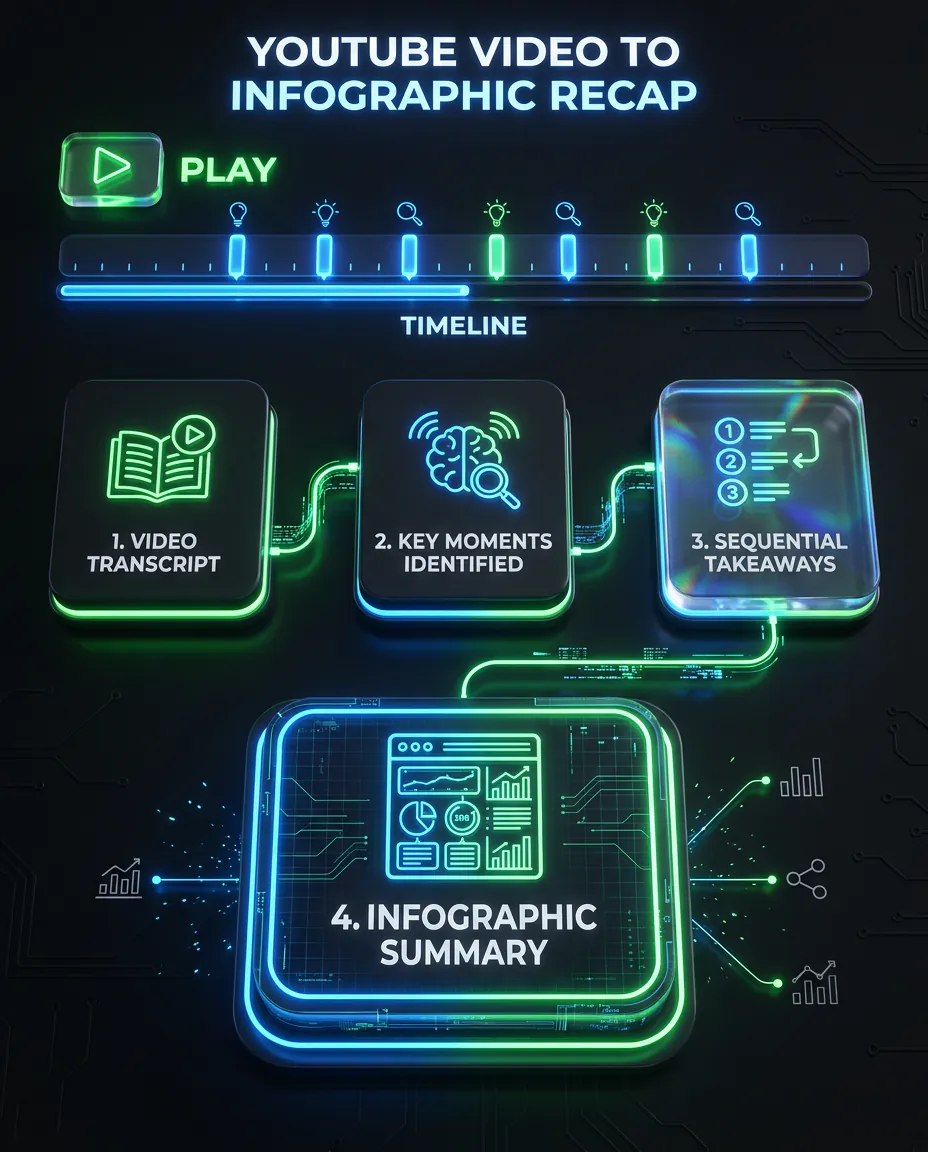
YouTube to infographic example showing a video transcript transformed into an infographic recap.

YouTube to infographic example showing a video transcript transformed into an infographic recap.

Video source

A YouTube tutorial transcript about a 30-day content strategy

Start from a YouTube URL, webinar transcript, tutorial notes, or pasted video transcript.

  • Tutorial transcript
  • Webinar recording notes
  • Product demo
  • Course lesson
  • Creator video

Infographic recap

A visual summary with key moments and takeaways

The result turns the video into a structure that works for blogs, social posts, handouts, or internal recaps.

  • Key moments
  • Process steps
  • Practical takeaways
  • Recap cards
  • Social-ready structure

YouTube to infographic

What is a YouTube to infographic generator?

A YouTube to infographic generator helps you repurpose videos into visual summaries. Instead of watching a full video, copying notes, rewriting the transcript, and designing a graphic by hand, you can turn the key ideas into a preview first. It works especially well for tutorials, webinars, educational videos, product demos, interviews, and creator content that already has clear sections or steps.

How it works

A simple path from source material to a professional HD export.

Step 1

Add your source material

Paste text, add a link, upload a document, or bring in the notes you already have.

Step 2

Choose the infographic format

Pick the structure that fits the job: summary, checklist, timeline, comparison, or presentation visual.

Step 3

Generate a free preview

Review the draft first so you can see whether the structure, hierarchy, and message are useful.

Step 4

Export HD without watermark

Pay only when you want the polished export for publishing, client work, presentations, or commercial use.

Best use cases

These pages should rank because they solve specific source-to-visual workflows, not because they repeat generic AI copy.

Tutorial summaries

Turn how-to videos into step-by-step graphics that are easier to save and reuse.

Webinar recaps

Compress long webinars into executive visual summaries for attendees or sales follow-up.

Course handouts

Create classroom or cohort materials from educational video transcripts.

Video SEO assets

Add visual summaries to blog posts or pages built around video content.

LinkedIn carousel source material

Turn a transcript into a visual post outline before creating a carousel.

Internal training summaries

Convert training videos into process visuals people can reference later.

Infographic formats

Choose a format that matches the way your source material should be understood.

Summary infographic

Compress the most important points into a clean visual your audience can scan quickly.

Checklist

Turn instructions, requirements, or action items into a practical list people can follow.

Step-by-step guide

Show a process in order without forcing readers through a long paragraph.

Timeline

Map milestones, stages, or historical context into a clear sequence.

Comparison chart

Make tradeoffs, options, or before-and-after stories easier to understand.

Key takeaways visual

Pull out the handful of ideas that deserve to become a social post, slide, or handout.

Presentation visual

Create a slide-ready graphic for decks, webinars, workshops, or lessons.

Social post or carousel

Repurpose source content into a visual that fits LinkedIn, newsletters, and short-form distribution.

Example prompts

Tutorial

Turn this YouTube tutorial into a 6-step infographic for beginners.

Webinar

Summarize this webinar transcript into an executive visual recap.

Education

Create a classroom handout from this educational video transcript.

Marketing

Turn this video into a LinkedIn-style infographic with 5 practical takeaways.

SEO

Create a visual summary that can be embedded in a blog post about this video.

Training

Convert this training video into a process infographic for a team.

Manual workflow vs infoAIgraphic

Manual workflow

  • Watch the full video
  • Write notes by hand
  • Clean the transcript
  • Extract key moments
  • Design the recap
  • Reformat for sharing

infoAIgraphic workflow

  • Paste the YouTube source
  • Choose a recap format
  • Generate a preview
  • Review the key moments
  • Regenerate if the angle is off
  • Export HD when ready

Generate first. Pay only when the export is worth it.

Create a free preview before you spend anything. When the result is useful, use credits for the professional HD export with no watermark and commercial use.

Generate free preview
  • Free preview before checkout
  • No subscription required
  • Credits never expire
  • HD export removes the watermark
  • Commercial use available
  • Secure Stripe checkout

Related guides

FAQ

Can I turn a YouTube video into an infographic?

Yes. Paste a YouTube source or transcript and use the preview to turn the strongest ideas into a visual recap.

Do I need to edit the transcript first?

You can paste raw transcript text, but trimming filler and choosing the most useful section usually improves the result.

What videos work best?

Tutorials, webinars, lessons, demos, interviews, and talks with clear sections or steps work best.

Can I use it for LinkedIn or blog content?

Yes. Video recaps are useful as LinkedIn graphics, blog embeds, newsletter visuals, and carousel source material.

Is the preview free?

Yes. You can preview the visual before paying for the HD export.

Can I use someone else’s video?

Only use source material you have rights to use. The tool helps create visuals, but rights and permissions are still your responsibility.

Generate a free infographic preview

Paste your source material, check the preview, and export HD only when the visual is useful enough to keep.

Generate free preview