Free Infographic Templates: 5 Best Resources for 2026
Compare five free infographic template resources, their editing workflows, export considerations, and the best fit for your project in 2026.

Free Infographic Templates: 5 Best Resources for 2026
Try the workflow on your own content
Have a report, article, set of notes, or rough idea? Generate a watermarked preview with the AI infographic generator, review the result, and decide whether a clean HD export is worth unlocking.
Free infographic templates are useful when you want a proven layout and are comfortable editing every section yourself. The best resource is not necessarily the one with the largest gallery. It is the one that matches your content structure, gives you enough control, and lets you produce the file you actually need.
This guide compares five established resources: Canva, Adobe Express, Piktochart, Venngage, and Visme. Each offers a free way to start creating, but availability, premium assets, downloads, and licensing conditions can change. Check the current plan and license before using a design for client or commercial work.
Key takeaways
- Choose the structure before the style. A timeline, process, comparison, list, and statistical infographic solve different communication problems.
- Verify the complete export path first. Open a template, make a small edit, and confirm the required format is available before building the full design.
- Separate free templates from free assets. A template may be free while a font, photo, illustration, or export option inside it is not.
- Review the license for your use case. Commercial use, redistribution, and template resale are different rights.
- Use AI when the blank-canvas work is the bottleneck. A content-to-infographic workflow can produce a structured preview from your source instead of making you fit every point into a preset layout.
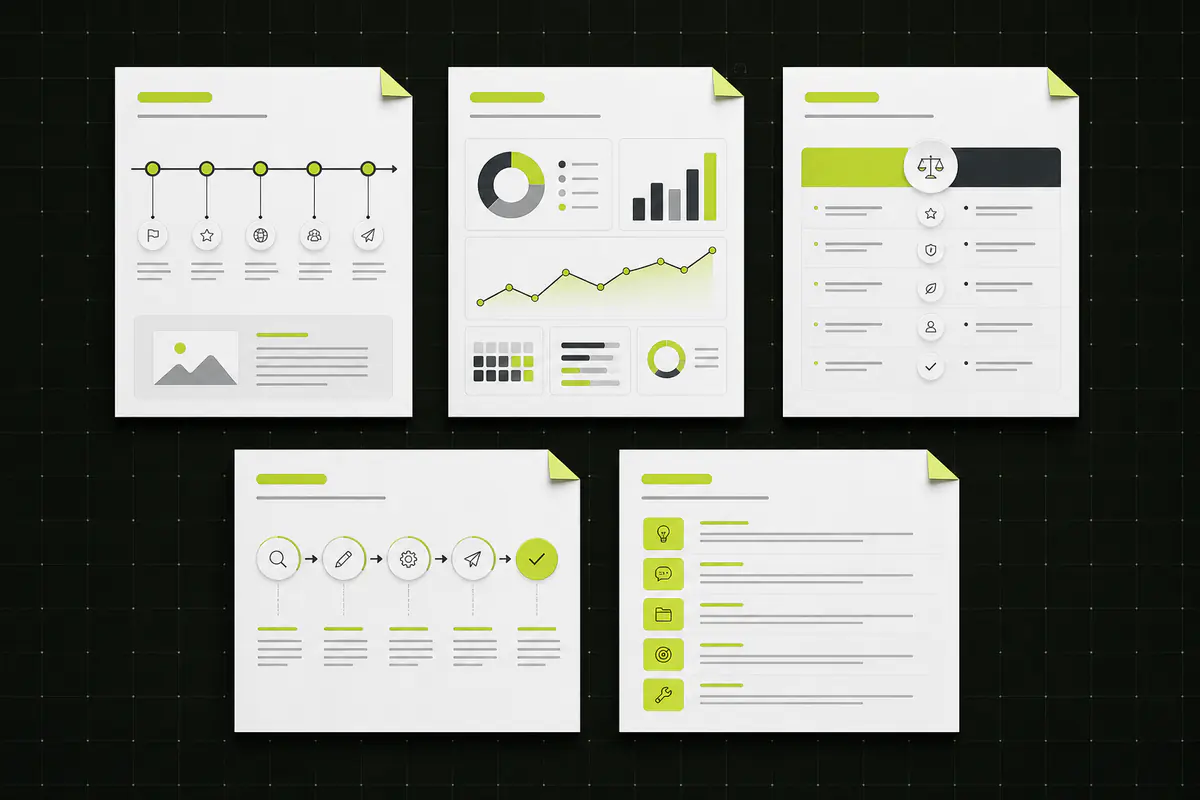
Quick comparison of free infographic template resources
| Resource | Best starting point | Editing model | What to verify before committing |
|---|---|---|---|
| Canva | Broad template discovery and familiar drag-and-drop editing | Template-first visual editor | Whether every selected asset and required download format is included |
| Adobe Express | Fast branded social and presentation graphics | Template-first editor with desktop and mobile access | Premium labels, resizing options, and export availability |
| Piktochart | Reports, data stories, and long-form infographics | Infographic-focused editor with charts and visual blocks | Free project limits and whether the required download format is available |
| Venngage | Business communication, processes, and information design | Template-first editor with specialized infographic categories | Whether a template is marked Free, Premium, or Business and which exports are included |
| Visme | Presentation-led visuals and mixed data content | Visual editor with reusable content blocks | Download, privacy, and advanced asset restrictions on the current free plan |
This table describes the workflow rather than promising permanent plan limits. Providers update their free and paid tiers, so their official product pages remain the source of truth.
1. Canva: best for broad template discovery
Canva’s infographic maker combines a large template gallery with a familiar drag-and-drop editor. You can search by visual format, subject, color, or style, then replace the sample copy, illustrations, charts, and background.
Canva is a practical choice when you already know the visual direction and want to make hands-on adjustments. It also works well when the infographic needs to sit beside other campaign assets created in the same workspace.
The main review step is asset eligibility. A free template can include or lead you toward elements that are available only under another plan. Before investing in detailed edits, confirm that the photos, icons, fonts, and final file type you selected are available to your account.
Choose Canva when: you want many starting styles and expect to control the final composition manually.
2. Adobe Express: best for quick campaign adaptation
Adobe Express offers editable infographic templates alongside tools for social posts, presentations, and other campaign assets. Its strength is not only the template itself, but the ability to keep related marketing pieces in a similar visual workflow.
It is a good fit for a concise list, promotional explainer, or campaign graphic that will be adapted into several placements. As with any freemium editor, review which templates and editing capabilities are marked as premium before selecting the design that anchors the project.
Choose Adobe Express when: the infographic is one part of a broader set of social or marketing assets.
3. Piktochart: best for reports and data-led stories
Piktochart’s infographic maker is centered on information design. Its official workflow supports premade templates, charts, icons, visual assets, and data entry, making it a natural option for reports, educational content, processes, and statistical summaries.
This focus helps when your source contains categories, measurements, or a sequence that needs more structure than a general social graphic. Piktochart’s current product page states that free accounts can download JPG and PNG files, while some other formats belong to paid plans. Confirm those details again when you start because plan conditions can change.
Choose Piktochart when: the information hierarchy and charts matter more than decorative flexibility.
4. Venngage: best for business infographic categories
Venngage’s template catalog organizes designs around formats such as timelines, processes, comparisons, lists, and statistical infographics. Templates without Premium or Business labels can be used as free starting points, according to its current catalog guidance.
That category depth can shorten the search when you are preparing a business process, internal communication, report summary, or educational guide. The important distinction is between editing a free template and downloading the finished project in a particular format. Confirm the complete workflow before writing all of your copy into the design.
Choose Venngage when: you want a specialized information-design layout and prefer browsing by communication purpose.
5. Visme: best for presentations and reusable content blocks
Visme’s infographic maker combines templates with charts, diagrams, maps, and reusable visual blocks. Visme states that its free plan includes a selection of templates and design tools, while downloads, private publishing, and other capabilities may require an upgrade.
That makes Visme useful for testing a presentation-oriented visual workflow, especially when an infographic will also appear in a report or slide deck. Verify privacy and download requirements before using sensitive or client material.
Choose Visme when: you need to assemble charts and visual blocks in a presentation-friendly workspace.
How to choose the right template before you edit
The fastest way to waste time is to select a style first and discover later that the content does not fit. Start with the message architecture instead.
- Write the one-sentence takeaway. If the audience remembers only one idea, decide what it should be.
- Classify the information. Use a timeline for chronology, a process for ordered actions, a comparison for alternatives, a list for independent points, and a statistical layout when numbers lead the story.
- Estimate content density. Count the meaningful sections, not every paragraph in the source.
- Test the longest section. Place the most difficult block into the template before editing colors or illustrations.
- Check the final output. Confirm dimensions, download format, watermark behavior, and license before completing the design.
The infographic layout tips guide explains how hierarchy, spacing, and reading order affect the result.
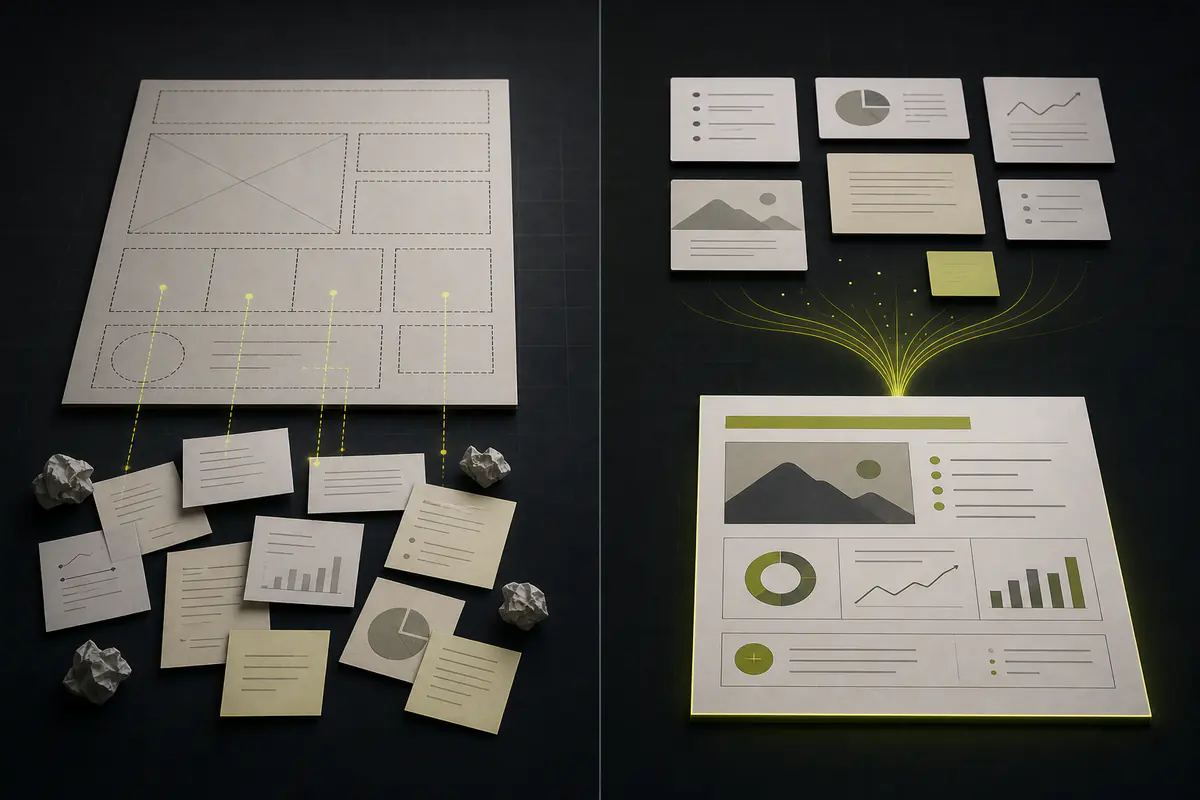
Template-first versus content-first creation
A template starts with a fixed visual system. You adapt the message to its sections, replace the placeholder content, and manually resolve overflow or gaps. This is useful when you want detailed control and already understand the layout.
A content-first generator starts with the source. It identifies a likely hierarchy and creates a visual draft around the material. You still need to review facts, wording, and visual clarity, but you do not have to choose and populate every box from a blank state.
Neither approach is universally better. Canva remains useful for hands-on editing. Specialized template platforms remain useful for repeatable formats. infoAIgraphic is designed for the earlier problem: turning a report, PDF, article, presentation notes, transcript, or idea into a visual preview that you can judge before purchasing a clean export.
For a deeper comparison, read why rigid infographic templates can become a bottleneck. You can also inspect different output structures in the AI infographic examples guide.
A practical free-template review checklist
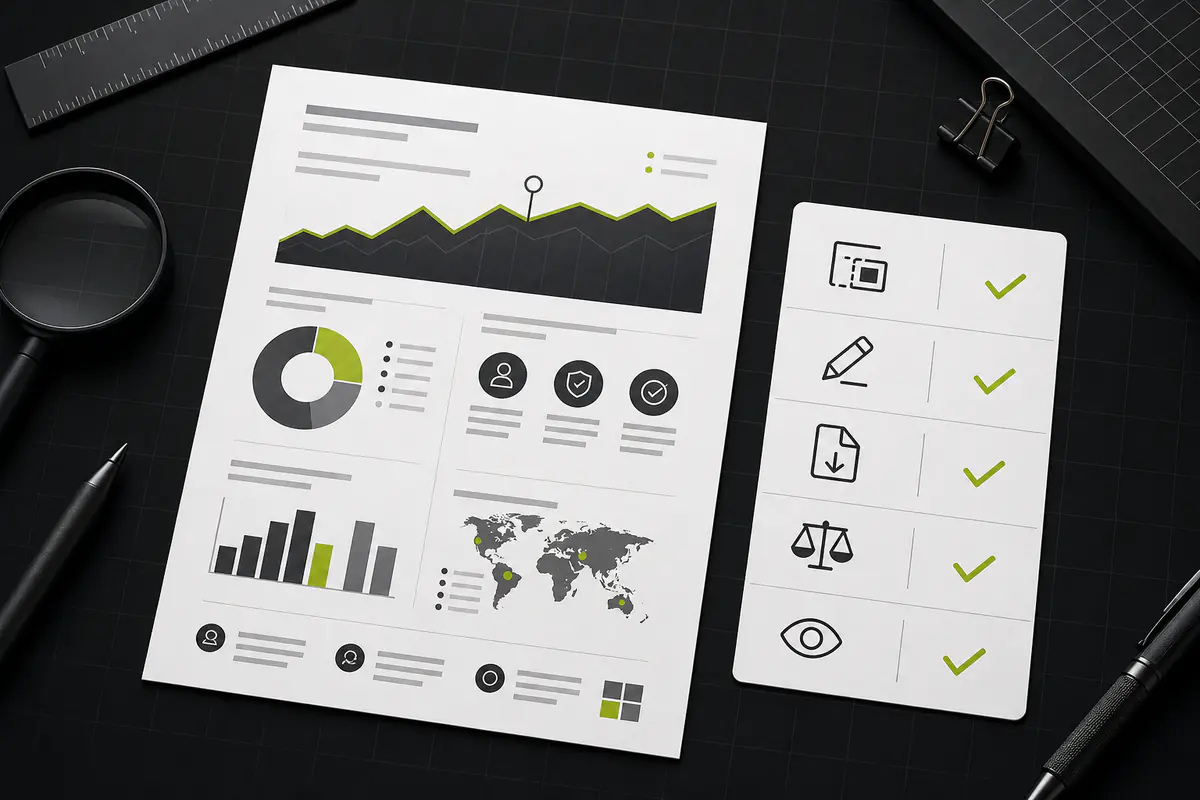
Before committing to a resource, complete this review:
- Layout fit: Does the structure match the story, or are you forcing unrelated sections into placeholder boxes?
- Editing effort: Can you make the required changes without rebuilding the design?
- Asset access: Are the selected fonts, icons, photos, and illustrations included for your account?
- Export path: Can you produce the required dimensions and file type?
- Watermark: Will the final output include provider branding?
- License: Are your intended commercial, client, educational, or internal uses allowed?
- Accessibility: Is the text readable on a phone, and does the color contrast remain clear?
- Source accuracy: Have you checked every number, quote, and claim against the original material?
Frequently asked questions
Are free infographic templates really free?
Some are free to edit and export, while others are free only at a particular stage of the workflow. A provider may charge for premium templates, individual assets, additional storage, resizing, private publishing, or certain download formats. Open the selected template and verify the complete path from editing to final download before building the project.
Which resource has the best free infographic templates?
The best resource depends on the job. Canva is useful for broad discovery, Adobe Express for related campaign assets, Piktochart for data-led communication, Venngage for specialized infographic categories, and Visme for presentation-oriented visual blocks. Choose based on structure and output requirements rather than gallery size alone.
Can I use a free infographic template commercially?
Commercial permission depends on the provider, template, and assets used inside the design. A license that permits marketing use may still prohibit reselling the original template or redistributing stock assets separately. Read the current provider terms and confirm that you have rights to your source text, images, data, and logos.
How can I avoid a watermark on a free infographic?
Check the provider’s current export rules before editing. Some free workflows allow unbranded downloads, while others reserve watermark removal or particular formats for paid plans. Do not remove provider branding manually when the license or plan requires it; choose an allowed export or another resource instead.
Which file format should I use for an infographic?
PNG is a dependable choice for web pages and social posts because it keeps text and graphic edges clear. JPG can be smaller for image-heavy designs but may soften fine text. Use PDF only when the platform supports it and the audience needs a document or print-oriented file. Always test the exported result at its real display size.
Can I fully customize a free infographic template?
Most template editors let you replace text, colors, images, and basic visual elements, but the exact controls and included assets vary. Test the most important customization first, such as changing a chart, replacing a font, or resizing a section. That reveals whether the template can support the project without a large manual rebuild.
When should I use an AI infographic generator instead of a template?
Use a content-to-infographic generator when you have useful source material but do not want to structure every section manually. It can create a visual starting point from existing content. Use a traditional template when precise hands-on layout control is more important. In both cases, review the wording, numbers, hierarchy, and usage rights before publishing.
Conclusion
Free infographic templates can be efficient when the layout already matches your message. The reliable workflow is to define the story, test the hardest content block, verify assets and exports, and read the license before completing the design.
When your main obstacle is turning existing content into a coherent first visual, start from the source instead of a blank template. Generate a free infographic preview, inspect the watermarked result, and unlock the clean HD export only when it is useful.
Share this article

Mateoo
Founder of InfoAIgraphic
Building the fastest way to turn text into viral infographics. Helping creators and businesses scale their visual content without design skills.
Related Articles
Infographic Templates: Why You Should Stop Using Them (And What to Do Instead)
Struggling with overused infographic templates? Discover how AI generation helps marketers build unique, scalable visual content without design skills.
Best AI Tools for Infographic Creation in 2026: Compared
Compare AI infographic tools for marketers: Canva, Piktochart, Venngage, Gamma and infoAIgraphic. See workflows, pricing, exports and best use cases.
AI infographic examples for inspiration: 2026 Ideas
Explore ai infographic examples for inspiration to spark campaign ideas, strengthen storytelling, and ship higher-converting visual content. Discover how!